These are the steps to add mail accounts to Outlook.
-
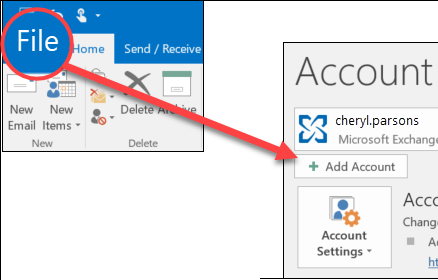
Select File > Add Account.
-
What you see next depends on your version of Outlook.
For Outlook for Microsoft 365 and Outlook 2016
For Outlook 2013 and Outlook 2010
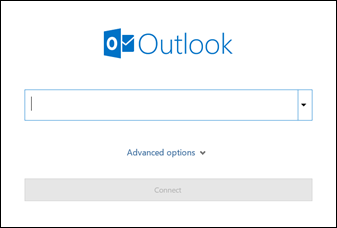
Enter your email address and click Connect.

Enter your name, email address, and password, and click Next.
-
If prompted, enter your password again, then select OK > Finish to start using your email account in Outlook.
Comments
0 comments
Please sign in to leave a comment.